Passwordless access.
Centralized control.
Sign in to Windows with your phone or NFC card. Keep your existing Active Directory accounts and manage sign-in methods in one place.
Flexible sign-in.
One place to manage it.
Give employees a choice of phone or NFC card sign-in,
with centralized management for IT.
For IT
Control access centrally
Manage work accounts and sign-in methods from one administration panel.
- Work accounts
- Phones and cards
- Directory connections
One familiar identity across both sign-in methods.
How it works
Two ways in.
One familiar desktop.
See how employees sign in to Windows
with their phone or a registered NFC card.
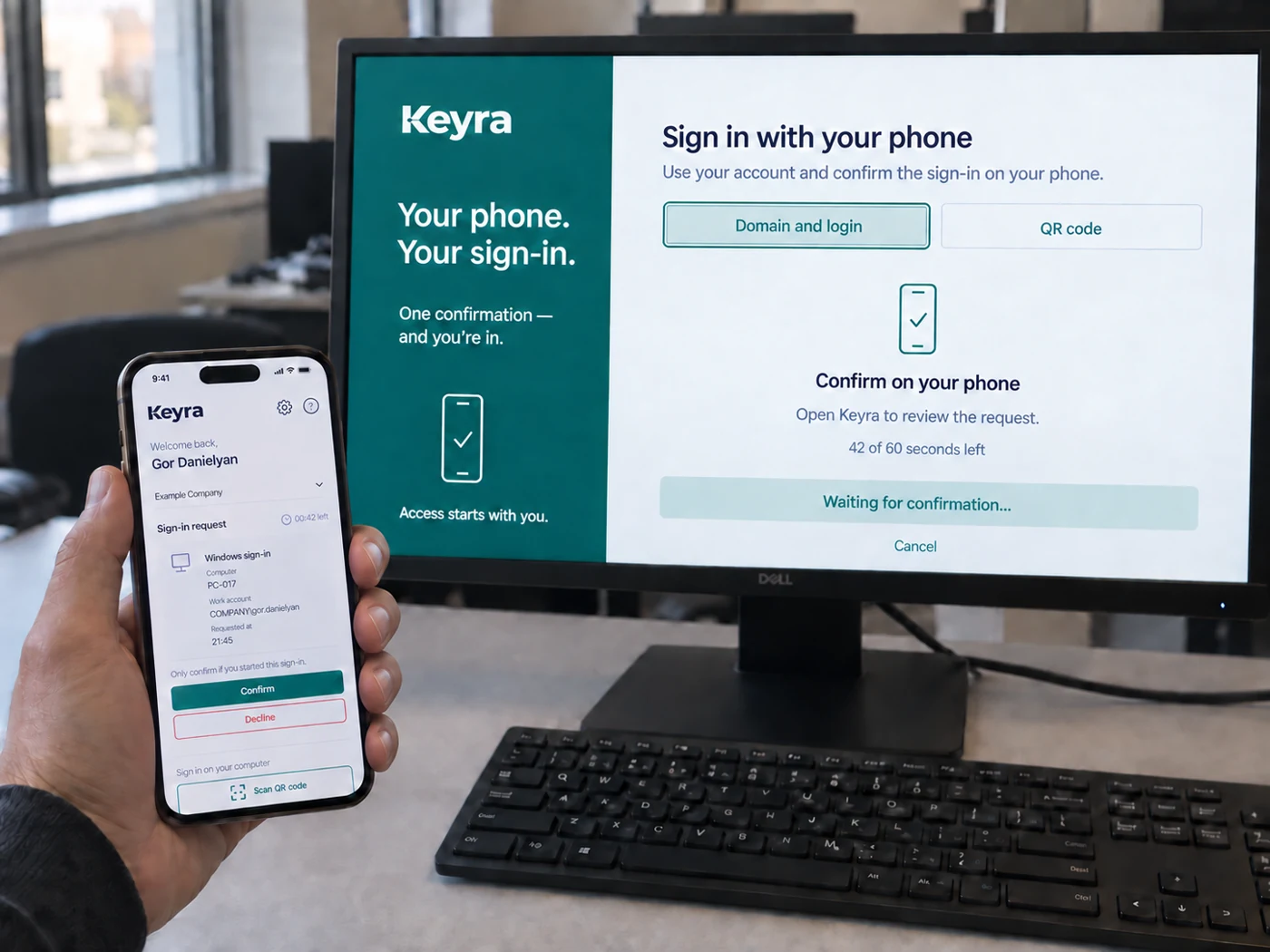
Sign in with your phone
Review the computer and account, verify it’s you, and confirm the request. Continue on your Windows desktop.
Sign in with your NFC card
Hold your registered card near a compatible reader. Keyra signs you in to your Windows account.
Illustrative product demonstrations. Sign-in time depends on your environment.
Strong passwords.
Less everyday hassle.
Easy-to-guess passwords.
Notes on desks.
Strong passwords. No daily typing.
IT can generate passwords that follow your AD policy. Employees sign in with their phone or a registered NFC card.
Forgotten password.
Another support ticket.
Keep work moving with phone sign-in.
Enrolled employees can sign in without remembering their AD password, reducing the need for a reset just to get to work.
An unfamiliar sign-in request.
See what you are approving.
Review the computer and account on your phone, then verify it is you before confirming the request.
Lost devices. Replacements.
Unclear access status.
Handle it from one place.
Enroll, replace or revoke phones and cards. Check user status and review Keyra sign-in activity.
Your Active Directory.
A simpler way to sign in.
Deploy Keyra in your own infrastructure and keep your existing Windows accounts.
Connect your directory.
Set up the Keyra server, connect Active Directory and install Password Sync agents on the required domain controllers.
Prepare your Windows PCs.
Install the Keyra client on the computers where employees will use it.
Enroll your employees.
Invite employees to connect their phones, or assign registered NFC cards.
- No Microsoft Entra ID required.
- Standard Windows password sign-in stays available.
Phone sign-in needs a separate internet-accessible endpoint.
Discuss Keyra for your Windows environment.
Do we need Microsoft Entra ID?
No. Keyra works with your existing on-premises Active Directory. Microsoft Entra ID is not required.
Where is Keyra deployed?
Keyra’s server, database and administration panel run in your own infrastructure. Phone sign-in uses a separate internet-accessible endpoint; the administration panel can remain on your internal network or VPN.
What do we need to install?
Set up the Keyra server, connect Active Directory and install Password Sync agents on the required domain controllers. Install the Keyra client on participating Windows PCs, then enroll employees’ phones or registered NFC cards. Phone users also need the Keyra mobile app; card sign-in needs a compatible reader.
Can employees still use a password?
Yes. Standard Windows sign-in with a domain username and password remains available alongside Keyra. Existing Active Directory account restrictions still apply.
What if a phone or card is lost?
Contact your IT administrator. They can revoke the lost phone or card in Keyra and enroll a replacement. Revoking a Keyra sign-in method does not disable the Active Directory account. Standard Windows password sign-in remains available subject to the account’s normal requirements.
Does phone sign-in need internet access?
Yes. The phone needs to reach Keyra’s internet-accessible sign-in endpoint, and the Windows client needs to reach the Keyra backend. Offline phone sign-in is not supported in the current product scope.

See how Keyra fits your Windows environment.
Explore phone and card sign-in, user management, and deployment with your existing Active Directory.
Prefer email?
[email protected]